How to Type on a Czech Keyboard: Step-by-Step Guide
Do you find yourself struggling when it comes to typing on a Czech keyboard? We’re here to help! Whether you’re a native Czech speaker or just picking up the language, mastering the layout and special characters of a Czech keyboard can be a game-changer. In this step-by-step guide, we’ll walk you through the basics of typing on a Czech keyboard without any hassle. From the placement of letters to accessing diacritical marks, you’ll become a pro in no time. So, grab your keyboard and let’s dive into the world of Czech typing!
Choosing the Right Czech Keyboard Layout for Your Device
When it comes to typing in Czech on your device, selecting the right keyboard layout is crucial for efficiency and accuracy. With various options available, it’s essential to choose one that suits your needs and preferences. To simplify the process, we’ve created this step-by-step guide to help you select and configure the ideal Czech keyboard layout for your device.
1. Determine your device’s operating system:
– Windows: On a Windows PC, you can easily switch to a Czech keyboard layout by navigating to the Control Panel, selecting “Clock, Language, and Region,” then “Region and Language,” and finally “Change keyboards or other input methods.” Here, you can add Czech as a language and choose your preferred keyboard layout.
– Mac: If you’re using a Mac, go to “System Preferences,” click on “Keyboard,” and select the “Input Sources” tab. Add Czech as a language, and you’ll be able to pick the Czech keyboard layout that suits you best.
– Mobile devices: For smartphones and tablets, access the settings menu, then navigate to “Language & input” or a similar option. Add Czech as a language and choose the appropriate keyboard layout.
2. Choose the right Czech keyboard layout:
– QWERTY-based layouts: If you’re already familiar with the standard QWERTY layout, you can opt for the Czech QWERTY layout, which maintains the familiar arrangement of letters while accommodating Czech-specific characters. This layout is well-suited for those accustomed to the traditional QWERTY keyboard.
– QWERTZ-based layouts: Another popular option is the Czech QWERTZ layout, which rearranges several keys to accommodate Czech-specific characters. This layout is commonly used in Czech-speaking regions and may require a slight adjustment period if you’re used to QWERTY.
– Programmer-friendly layouts: If you’re a programmer or frequently use special characters, you might consider the Programmer QWERTY or Czech-QWERTZ layouts. These layouts provide easy access to a wide range of symbols and special characters commonly used in programming and technical fields.
By following these steps, you can ensure a seamless typing experience on your Czech keyboard layout, tailored to your device and personal preference. Whether it’s for work, communication, or simply expressing yourself in Czech, this guide will enable you to type effortlessly and accurately. So, go ahead and configure your Czech keyboard layout for a smooth and enjoyable typing journey!

Understanding the Key Differences between a Czech and English Keyboard
Czech and English keyboards may seem similar at first glance, but once you start typing, you’ll notice some key differences. Understanding these distinctions will help you become proficient in typing on a Czech keyboard effortlessly. Here’s a step-by-step guide to help you navigate and master typing on a Czech keyboard.
1. Switching to the Czech keyboard layout: To type in Czech, you’ll need to change your keyboard layout to Czech. On Windows, you can do this by going to the Language Settings in the Control Panel and adding the Czech keyboard layout. On macOS, navigate to the Keyboard settings in System Preferences and add the Czech keyboard layout.
2. The placement of special characters: One of the significant differences between a Czech and English keyboard is the placement of special characters. On a Czech keyboard, you’ll find a dedicated key for accents, such as á and ů, as well as diacritical marks like č and š. To type these characters, simply press the accent key followed by the corresponding letter. Additionally, the Czech layout also includes unique characters like ř and ě, which can be accessed by using the Shift key in combination with another key.
Mastering the Placement of Special Characters on a Czech Keyboard
When it comes to typing on a Czech keyboard, mastering the placement of special characters can be a game-changer. These unique characters are essential for accurately representing the Czech language, and knowing how to access them efficiently can greatly improve your typing speed and accuracy. In this step-by-step guide, we will walk you through the process of typing special characters on a Czech keyboard, making your typing experience on this layout a breeze.
Here are some key tips to help you master the placement of special characters on your Czech keyboard:
1. Utilize the AltGr key: The AltGr key, located to the right of the space bar, is your ticket to accessing additional characters on the Czech keyboard layout. By holding down AltGr and pressing the corresponding key, you can easily type special characters like á, č, ě, š, and ž.
2. Discover the power of the Shift key: When combined with certain keys, the Shift key can provide you with even more special characters. For example, holding Shift and pressing the 2 key will yield the quotation mark (“) character. Similarly, pressing Shift and the corresponding number keys will give you access to additional symbols and punctuation marks.
By familiarizing yourself with the placement of special characters on a Czech keyboard and utilizing shortcuts like AltGr and Shift, you’ll be well on your way to typing effortlessly and accurately in Czech. Practice makes perfect, so take some time to familiarize yourself with these keyboard modifications, and soon enough, they’ll become second nature to you. Happy typing!
Learning the Shortcuts for Typing Accented Characters on a Czech Keyboard
In today’s increasingly globalized world, it’s becoming more and more important to be able to communicate in different languages. If you’re working with a Czech keyboard and need to type accented characters, fear not! We’re here to guide you through the process step-by-step. With a few simple shortcuts and a bit of practice, you’ll be typing those accented characters like a pro in no time.
First, let’s focus on typing the most commonly used accented characters in Czech. To type an á, press and hold the “Option” key on your keyboard, and simultaneously press the letter “a”. To type an é, follow the same process, but press the letter “e” instead. For the c with a caron (č), hold the “Option” key and press the letter ”c”. And to type the š character, hold “Option” and press ”s”. These shortcuts will come in handy if you frequently need to type these accented characters. So, practice and soon you’ll be typing them effortlessly.
But what about other accented characters? Don’t worry, we’ve got you covered! To type the ř character, hold “Option” and press “r”. For the ě, ú, and í characters, hold “Option” and press ”e”, “u”, and “i” respectively. Lastly, to type the ů character, hold “Option” and press “u”. With these shortcuts in your arsenal, typing accented characters on a Czech keyboard will become second nature to you. So, go ahead and impress your Czech-speaking colleagues and friends with your newfound typing skills!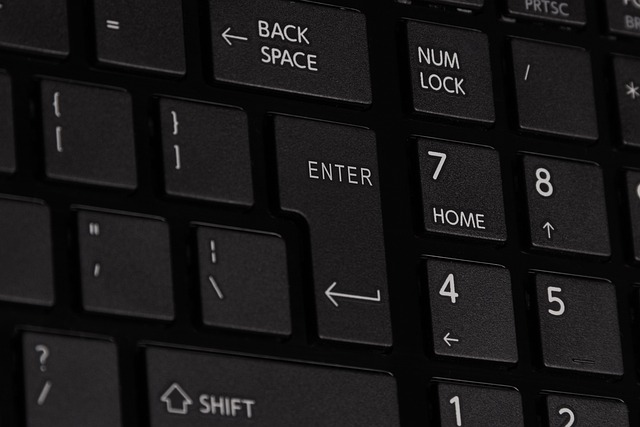
Utilizing the Shift Key to Type Common Czech Punctuation Marks
The Czech language has several unique punctuation marks that may not be found on standard keyboards. However, with the help of the shift key, you can easily type these marks and enhance your written communication in Czech. Here’s a step-by-step guide on how to utilize the shift key to type common Czech punctuation marks on a Czech keyboard:
1. Utilizing the **Shift Key**:
– To access the special characters, press and hold the shift key located on either side of your keyboard.
- While holding the shift key, press the corresponding key for the desired punctuation mark on a Czech keyboard.
2. Common Czech Punctuation Marks:
– **Ě** (caron): To type this mark, hold the shift key and press the key located above the right shift key.
– **Ů** (ring): To type this mark, hold the shift key and press the key located above the Enter key.
– **Ť** (caron): To type this mark, hold the shift key and press the key located above the Tab key.
– **Ň** (caron): To type this mark, hold the shift key and press the key located to the left of the number 1 key.
By mastering the utilization of the shift key on a Czech keyboard, you can effortlessly type these common Czech punctuation marks and enhance the accuracy and authenticity of your written Czech text. So go ahead, utilize the power of the shift key and embrace the beauty of Czech language punctuation!
Efficiently Typing Symbols and Currency Signs on a Czech Keyboard
If you’re using a Czech keyboard and need to efficiently type symbols and currency signs, we’ve got you covered with this step-by-step guide. With a few simple shortcuts and tricks, you’ll be able to seamlessly incorporate these special characters into your text.
One way to quickly access symbols and currency signs is by using the Alt key in combination with numeric codes. For example, to type the euro symbol (€), you can hold down the Alt key and type 0128 from the numeric keypad. Similarly, the pound sterling symbol (£) can be inserted by pressing Alt and 0163. To make typing even easier, remember that the right Alt key on your Czech keyboard is usually marked as AltGr, and it can be used in place of the standard Alt key for accessing additional characters.
In addition to these numeric codes, you can also utilize the Windows Character Map to find and insert symbols and currency signs. Just search for “Character Map” in the Windows search bar and open the application. From there, you can browse through a wide range of characters, select the one you need, and click on the “Copy” button. Then, you can simply paste the symbol into your text wherever you want it to appear. Remember to save time by creating a shortcut for frequently used symbols, making it even quicker to access them in the future.
By utilizing these handy shortcuts and tools, you can efficiently type symbols and currency signs on your Czech keyboard. Whether you need to include the euro symbol, the pound sterling sign, or other special characters, you’ll be able to seamlessly incorporate them into your text with ease. Happy typing!
Navigating the Layout of a Czech Keyboard with Ease
Czech keyboards can be a bit intimidating if you’re not familiar with the layout, but fear not! With this step-by-step guide, you’ll be typing on a Czech keyboard with ease in no time. Let’s dive right in!
First things first, you’ll notice that the Czech keyboard layout is slightly different from the standard QWERTY layout. One of the notable differences is the placement of the letters P, Y, Q, and A, which are swapped compared to the standard layout. Don’t worry, it may take a little getting used to, but with practice, you’ll quickly adapt.
To type accented characters, the Czech keyboard offers a helpful feature. Simply press and hold the corresponding key, and a menu of accented characters will appear. For example, to type “á,” hold down the A key, and then select the desired accent from the menu that pops up. This feature is incredibly useful for typing characters such as ě, š, č, and ř effortlessly. Remember, practice makes perfect, so don’t hesitate to experiment and familiarize yourself with the different key combinations.
Another noteworthy feature of the Czech keyboard is the presence of additional keys compared to the standard layout. These extra keys allow for easy typing of common Czech characters, such as ů and ť. To type ů, simply press the right Alt key located to the right of the spacebar, along with the U key. Similarly, to type ť, press the right Alt key and then the T key. These shortcuts can save you valuable time and effort, especially if you frequently type Czech text.
In summary, typing on a Czech keyboard can seem challenging at first, but with a little practice and familiarity, you’ll become a pro in no time. Remember to utilize the helpful feature of holding down keys to access accented characters, and take advantage of the additional keys for easy typing of Czech-specific characters. Happy typing!
Tips for Increasing Your Typing Speed on a Czech Keyboard
Czech keyboards may seem different at first, but with a few tips and practice, you can increase your typing speed and efficiency. Here are some useful tips to master typing on a Czech keyboard:
1. Familiarize yourself with the layout: Take some time to understand the layout of the Czech keyboard. It has some unique characters, such as ř, š, and č, which may require different key combinations. Memorize the placement of keys to improve your typing accuracy.
2. Learn the AltGr key shortcuts: The AltGr (alternative graphic) key on a Czech keyboard allows you to access additional characters. Combine it with certain keys to type characters like ě, ů, and ž. Practice using these shortcuts to save time and type effortlessly.
3. Utilize your little finger: In Czech typing, the little finger often operates the right ‘Shift’ key. Train your little finger to reach this key efficiently as it is frequently used in combination with other keys to type capital letters and special characters.
4. Practice touch typing: Touch typing is a technique where you type without looking at the keyboard. It helps increase your typing speed and accuracy. Enroll in online touch typing courses or find typing games that focus on Czech keyboards. Regular practice will make you more comfortable with the layout and improve your overall typing speed.
Follow these tips regularly and with practice, you’ll become fluent with typing on a Czech keyboard in no time. Remember to be patient with yourself and gradually increase your speed, as accuracy is equally important. Happy typing!
Troubleshooting Common Typing Issues on a Czech Keyboard
If you’re using a Czech keyboard and experiencing some common typing issues, don’t worry! We’ve got you covered with this step-by-step guide on troubleshooting these problems. By following these simple tips, you’ll have a smooth and efficient typing experience on your Czech keyboard in no time.
One common issue is when certain characters or symbols aren’t appearing correctly when you type. To fix this, check your keyboard settings to ensure that it is set to Czech input. You can do this by clicking on the language indicator in your taskbar and selecting Czech as the input language. Additionally, make sure that the correct keyboard layout is selected. You can access this by clicking on the language indicator and selecting ”Language settings.” From there, you can add and select the Czech keyboard layout. Once you’ve made these changes, you should be able to type all the unique Czech characters and symbols effortlessly.
Another common problem is when some keys on your Czech keyboard are not responding or are producing the wrong characters. In such cases, it’s possible that the keyboard language is set correctly, but the physical keyboard layout is incorrect. Double-check to ensure that your keyboard is set to the correct layout. If you’re using a physical keyboard, make sure that the keycaps match the language you are trying to type in. If you’re using an on-screen keyboard, adjust the settings accordingly. Also, keep in mind that some keyboard layouts may have specific shortcuts to access certain characters or symbols. It’s worth exploring these shortcuts to enhance your typing efficiency.
Concluding Remarks
In conclusion, mastering how to type on a Czech keyboard is an essential skill for anyone who frequently uses this language in their daily life or profession. By following this step-by-step guide, you can easily adapt to the layout and confidently type Czech characters without any hassle.
Key takeaways from this article include:
1. Familiarize yourself with the QWERTZ keyboard layout, specifically designed for Czech language input.
2. Remember the various ways to type special Czech letters, such as using Alt codes or keyboard shortcuts.
3. Take advantage of the Czech keyboard stickers available for purchase online, which can significantly assist your typing accuracy.
4. Practice and gradually build your muscle memory to improve typing speed and efficiency.
5. Keep in mind that you can quickly switch between languages on your computer’s input settings, making it convenient while typing in both Czech and other languages.
By applying these techniques and being consistent with your practice, you can become a proficient typist on a Czech keyboard, saving time and effort in your language-related tasks. Happy typing!